📋 Table of Contents
- Introduction: What is the Hot Topic "Genspark"?
- Why Genspark is the "Strongest for Business"
- Understand the Rules of the "Free Tier" (The Battle of 100 Credits a Day)
- 【Saving Tip ①】Avoid the "Super Chat" Trap
- 【Saving Tip ②】Make the Most of the Latest Models with "AI Chat"
- 【Practical Technique】How to Maximize Slide Functionality with the Free Plan
Introduction: What is the Hot Topic "Genspark"?
Recently, many people might have seen "Genspark" in TV commercials and web ads and are curious about it. "Another new AI?" "How is it different from ChatGPT?" It's understandable to think that. However, to conclude, "If you're using AI for business, Genspark is the optimal solution."
As a former engineer, I've tested numerous AI tools, but for those just starting with AI, don't waste time choosing tools; try Genspark first. That's because it's not just a chatbot, but an "autonomous agent (AI that thinks and acts on its own)," and above all, it can directly handle "Office files" that we use for work.
Why Genspark is the "Strongest for Business"
Many AI tools are good at generating "text" and "code," but they struggled to create "files themselves" like Word, Excel, and PowerPoint. But Genspark is different.
- Fully compatible with Office products: It can directly generate Word, Excel, and PowerPoint files.
- Smartphone equivalent to PC: Since it's browser-based, you can handle complex tasks even from your smartphone.
- All-in-one: From image generation to video creation and music generation, it can do it all.
As the official statement promotes "business use," it truly is an AI for work.
For an overview of Genspark's features, please refer to the articles below.
• Genspark Basic Features Complete Guide: 9 Tools for AI Search, Research, and Content Creation
• Genspark Advanced Features Complete Guide: 11 Tools for Creative, Development, and Real-World Tasks
Understand the Rules of the "Free Tier" (The Battle of 100 Credits a Day)
"I get that it sounds amazing, but jumping straight to a paid plan is a bit much..." That feeling is correct. Let's make the most of the free tier first.
The current specifications of Genspark's free plan are as follows:
- Credits granted: 100 credits daily
- Carryover: Not possible (you lose them if you don't use them up by the end of the day!)
- Estimated consumption (reference values):
- Super Chat: approx. 24 credits
- AI Chat (GPT 5 Pro): approx. 9 credits
- AI Chat (Claude Sonnet): approx. 3 credits
- AI Chat (Gemini 2.5 Pro): approx. 2 credits
- Image Generation: approx. 56 credits
【Saving Tip ①】Understanding the Nature of "Super Chat"
Look at the image below. Genspark generally has two main input interfaces.
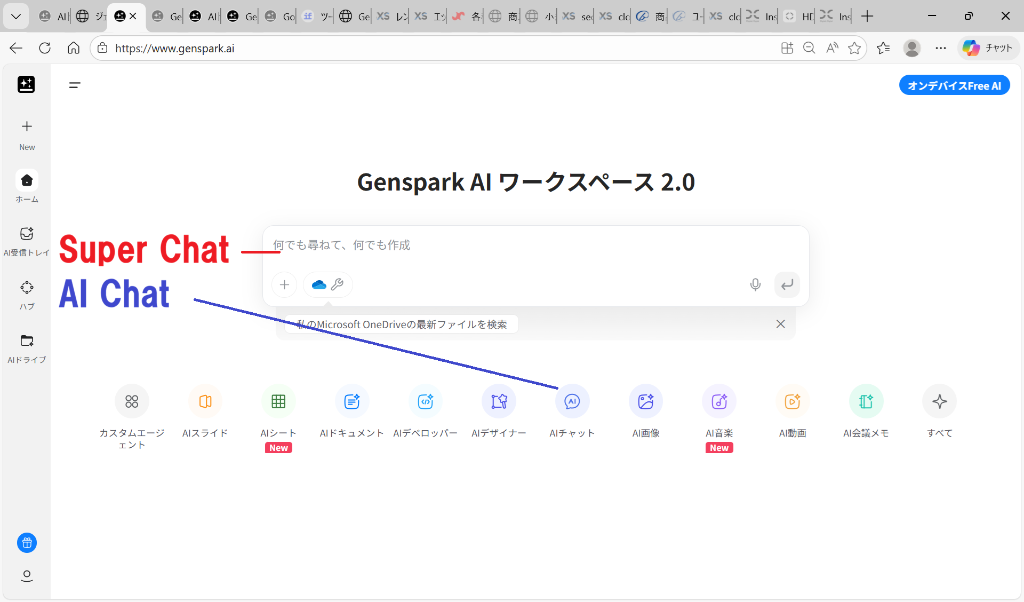
Genspark AI Workspace 2.0 - Difference between Super Chat and AI Chat
The most prominent input field on the top page is "Super Chat." This is the most powerful interface, integrating all of Genspark's features, but its drawback is that it consumes a lot of credits because the AI autonomously uses various tools.
【Saving Tip ②】Make the Most of the Latest Models with "AI Chat"
This is the most effective saving tip. Instead of jumping straight into generation, first consult with "AI Chat (just a chat function)."
Benefits: While it consumes credits, it's only a few credits per interaction, making it significantly cheaper compared to generation functions (20-50 credits). Plus, you have your pick of cutting-edge AI models.
Currently (February 2026), the following high-end models are available:
- OpenAI: GPT-5 Pro, GPT-5.1 Instant, o3-pro
- Google: Gemini 3 Pro Preview, Gemini 2.5 Pro
- Anthropic: Claude Opus 4.6
Normally, to use these models directly, you would need to subscribe to their respective paid plans (e.g., ChatGPT Plus, Gemini Advanced), but with Genspark, you can switch between and try all these models.
- Brainstorm ideas using AI Chat (low cost) with smart models like GPT-5 or Gemini 3.
- Ask multiple models to confirm information accuracy (second opinion).
- Once the structure is completely solid, copy the instruction prompt.
- Paste it into Super Chat to generate the final output in one go.
Following these steps will drastically reduce wasted credits from trial and error.
【Bonus】Save Credits by Stopping Super Chat Report Generation
When you give instructions to Super Chat, it sometimes **automatically generates a report at the end of the task and saves it to your AI Drive**. This leads to the following problems:
- **Credits are wasted unnecessarily**
- **Past reports accumulate in your AI Drive, which is very annoying**
- **It can even freeze during report generation** (very frustrating!)
💡 Solution: Instruct it not to generate reports
By instructing the chat not to generate reports, you can **reduce credit consumption and work more comfortably**.
Combining this with the **"Repetition"** technique revealed in a previous article (Article 56: Instruction Repetition Technique) makes it even more comfortable.
📋 Recommended Prompt (enter in chat screen):
Important: To save time and credits, do not generate reports; report concisely in the chat screen.
Important: Please repeat the phrases marked as "Important" at each chat break. Do not just repeat them, but understand and implement their content.
If there is no repetition, I will assume you have forgotten.
By entering this prompt at the beginning of the chat, the AI will remember and execute the instructions.
【Practical Technique】How to Maximize Slide Functionality with the Free Plan
Genspark's flagship feature is "slide creation." Just by entering keywords, beautiful presentation materials are generated. While direct download in **.pptx format** is not available with a free account, it can still be used quite practically.
- Present directly in presentation mode: The generated slides are displayed beautifully in the browser. You can **share your screen** in Zoom, Teams, Google Meet, etc., and present directly. There's no need to convert it into a PowerPoint file.
- Share the URL: By sharing the slide's URL, others can also view it in their browser. It's easy and no need to manage editing permissions.
- Utilize as a draft proposal: Creating the framework in Genspark and then using it as a "starting point" to create your own PowerPoint is also effective.
- After generating slides, click the "View & Export" button in the top right corner of the screen.
- Select "Open Presentation View."
- Copy the URL of the opened presentation view and send it to others; they will be able to see the same slides.
- In the presentation view, clicking the "Play button" will display the slides in full screen.
→ If you can do all this, you might not need a PowerPoint file!
💡 How to Download as a PowerPoint File (Click to show)
📝 Prior Confirmation:
- It involves some repetitive work for all pages
- This method is valid as of February 22, 2026
- Image quality may deteriorate
Steps:
- Display the slide in presentation view.
- Save one slide page as a screenshot.
- Attach that screenshot to Genspark's AI chat and instruct it: "Please turn the slide part of this image into a PowerPoint file."
- ↓ Here's the key point ↓
For some reason, the AI will generate a PowerPoint file! - You will need to repeat the above steps (2-4) for all pages of the slide.
→ Considering the time and effort, it might be more efficient to simply **switch to a paid plan**.
In fact, in recent online meetings, most presentations are done by "showing them via screen sharing." If file exchange is not necessary, the free plan is perfectly sufficient for business use.
Genspark is evolving every day. Please take this opportunity to experience all of Genspark's features.