

Table of Contents
- 1. Introduction
- 2. Verification Results: Is it Okay to Close the Site Before Task Completion?
- 3. Important! The Trap of "Reload (F5)" You Absolutely Shouldn't Do
- 4. If You Think It's Frozen, Reopen from "History"
- 5. Bonus: When Checking on a Smartphone, "Browser" is Recommended Over "Official App"
- 6. Summary
1. Introduction
When generating dozens of pages of slides or entrusting complex code creation to Super Agent (Autonomous Agent) in Genspark, you might have to wait a few minutes for the process to finish.
I often receive questions from readers such as "Is it okay to close the page or computer while creating documents in Genspark?" or "Is it okay to close the site before the task is complete?" Especially since slide creation in Genspark takes a long time, many people must wonder, "What should I do if Genspark is stuck thinking?" or "Can I reload if Genspark freezes?"
This time, I will explain the 'safe way to leave it unattended' and the 'absolute no-go actions (traps that waste credits)' that I've learned from extensively using Genspark.
✅ Closing browser / leaving unattended during generation: Completely OK (runs in the background)
❌ Reload (F5) when frozen: NO (commands may duplicate and break)
💡 Correct way to reopen: Re-enter from the "History" menu
📱 Checking progress on smartphone: Personally recommend "browser" over official app (to avoid bugs)
2. Verification Results: Is it Okay to Close the Site Before Task Completion?
To conclude, whether it's a single AI Chat or a multi-step Super Agent process, it is perfectly fine to close the browser tab or shut down the site before generation is complete. There is absolutely no problem with turning off your PC.
Once the AI begins processing, the task is fully handed over to Genspark's cloud servers. Therefore, you can use it asynchronously (unattended) by submitting a heavy task on your PC, closing the browser immediately, and then checking the finished product on your smartphone while on the train.
However, it is dangerous to close the browser the moment you press the Enter key (submit button). Due to network lag, communication might be cut off before the instruction reaches the server.
Please ensure you see 【Thinking...】 or 【Generating...】 appear on the screen for at least one second before closing the browser. This will ensure the task proceeds reliably in the background.
If you later open the history and encounter a task that has partially failed, or if it remains stuck on "Thinking" indefinitely even with the screen open, it's not because you closed the browser. It means Genspark's server-side has experienced a timeout (natural termination) or is caught in an infinite loop bug.
For the conditions under which this "Thinking loop problem" occurs and specific workarounds, please refer to Genspark Usage Issues: 7 Problems I Experienced and How I Dealt With Them, where we have thoroughly investigated them.
3. Important! The Trap of "Reload (F5)" You Absolutely Shouldn't Do
While closing the browser is safe, the most dangerous action you absolutely should not do is "reloading (refreshing) the browser".
If you think the process is taking too long and might be "frozen", and you press the browser refresh button (F5) during generation, a phenomenon where "the same instruction (prompt) is sent to the server again" may occasionally occur.
If this happens, it leads to the following worst-case scenarios:
- Chat context collapses: The AI in the background tries to process the "initial instruction" and the "second instruction due to reload" simultaneously, causing conflicts that may cut off output or make the conversation context scrambled.
- Double credit consumption: Since the instruction is sent twice, your valuable credits are wasted by being consumed twice. If this phenomenon occurs, especially during image, video, or slide generation which consumes a lot of credits, it will result in a fatal loss for that day's work.
Even if you feel it might be "frozen", never press F5 to reload. The correct way to handle it is the "reopen from history" method introduced in the next section.
4. If You Think It's Frozen, Reopen from "History"
So, what should you do if the screen behaves strangely while waiting, or if you leave and then want to check the progress?
The steps to prevent this "duplicate instruction bug" and check the latest status are as follows:
- Do not reload (refresh) the browser while waiting.
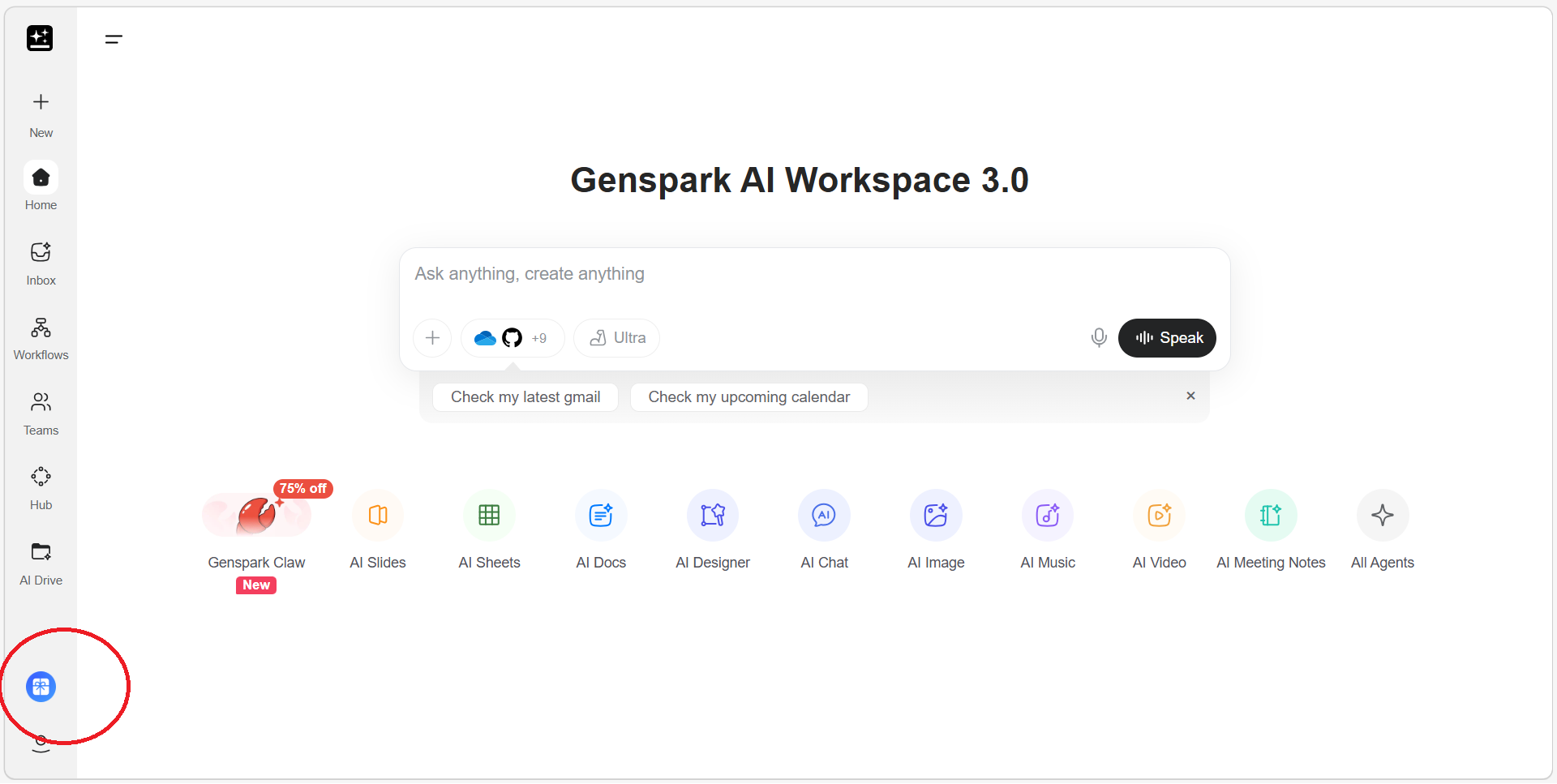
- Open "Chat History (History)" from the hamburger menu (three lines) in the upper left, and click on the relevant session to reopen it.
By following this "re-enter from history" procedure, you can completely prevent duplicate request submissions and safely synchronize the current correct status (in-progress or completed) of the background task with your screen.
I accidentally closed the browser while generating 50 pages of slides. When I reopened Genspark and re-entered the session from "History", I found that the generation had completed in the background, and I could view the slides. No unnecessary credit consumption occurred. Re-entering from history without reloading is the correct approach.
5. Bonus: When Checking on a Smartphone, "Browser" is Recommended Over "Official App"
When checking the completion of a task submitted on a PC from your smartphone while on the go, I have one piece of advice from an engineer's perspective.
The official Genspark smartphone app offers a significant advantage: "push notifications after task completion." However, from my experience and past verifications (Summary of Genspark Android App and Browser Issues), the current smartphone app has a relatively high chance of encountering bugs.
- "Cannot view Genspark chat history"
- "Cannot access AI Drive"
- "Suddenly unable to log in"
Actually, accessing the web version of Genspark from a smartphone browser (Chrome or Safari) offers almost no functional differences. Therefore, if you want to work more stably, I recommend "accessing it from a browser instead of the app" even on your smartphone.
6. Summary
Genspark is an excellent tool, but its front-end (screen) behavior still has some unstable parts. By simply following the rules below, you can significantly reduce time loss due to errors and wasteful credit consumption.
✅ OK to close the browser after confirming "Thinking..." appears
❌ Never F5 reload even if it freezes
💡 Always re-check by re-entering from the "History" menu
📱 Smartphone checking is more stable via browser than app
If you remember these two points—"submit heavy tasks and check from history" and "never reload"—you can use Genspark without stress. Please give it a try.
For general Genspark issues, please refer to Genspark Usage Issues: 7 Problems I Experienced and How I Dealt With Them, and for details on the freezing phenomenon, also see Genspark Freezes and Loops: How to Protect Yourself from Sudden Stoppage.

![Genspark's AI Video Generation: A Comprehensive Review – How It Differs from Sora 2 and Veo 3 Integration [2026 Edition]](/images/articles/83-ai_video_generation-en.png)