

Table of Contents
- 1. Introduction
- 2. The Reality of Genspark PPT Creation: "80% AI, 20% Manual" is the Golden Ratio
- 3. Super Efficient! Basic Steps to Create Presentation Materials with Genspark
- 4. [Recommended Application] Converting Paper Seminar Materials and Handwritten Notes into PPTs
- 5. Actual Genspark PPT Output Results and Tips for the "20% Manual Work"
- 6. Summary: Post-use of Training and Seminars Will Dramatically Change
1. Introduction
Recently, I've often heard that "Genspark makes document creation incredibly easy." Many of you might be curious and searching for "Genspark AI PPT maker" or "How to create PPT with Genspark."
While the free version of Genspark allows for slide creation on the web, if you're using it for practical business, the ability to export (download) in PPTX format from Genspark is essential. This time, using the paid version of Genspark (with PPT download functionality), I will introduce "how to automate PPT creation in actual business settings" and a **"somewhat unconventional application method"** that I personally highly recommend.
2. The Reality of Genspark PPT Creation: "80% AI, 20% Manual" is the Golden Ratio
To conclude, AI-powered automatic generation of PowerPoint presentations with Genspark is truly easy. It's highly valued by business people who frequently create documents, and it has been very well-received by the small and medium-sized business owners who are my clients.
However, **abandon the illusion that "AI will complete a perfect PPT."** The feeling is that Genspark handles "creating 80% of the base from scratch."
While you can give correction instructions via chat on the Genspark screen, such as "change the size of this text box" or "move this layout to the right," a general weakness of AI is its difficulty in understanding "visual fine-tuning" through words.
I often get the question, "Can PPTs made with Genspark be easily edited as PowerPoint objects?" The answer is **YES**. The downloaded PPTX file has neatly separated text boxes and shapes, so it's overwhelmingly faster to do the remaining 20% of corrections and text additions manually as PowerPoint objects.
**"Have AI instantly create an 80% draft, and then humans do the final touches in PPT"** is the most efficient way to use it.
3. Super Efficient! Basic Steps to Create Presentation Materials with Genspark
I will introduce the basic steps I actually follow.
- Prepare Text: Roughly write the content you want to include in the slides in a notepad or Word.
- Prepare Design References: If you have reference materials like "make it in this style," prepare them (otherwise, entrusting it to Genspark's PPT themes is fine).
- Prepare Photos: Have any images you want to include in the slides ready.
- Throw Everything at Genspark: Simply attach all the above files and images, and give the instruction: **"Please create PPT materials with the attached text and content."**
With just this, impressive proposals, explanation materials for clients, and meeting agendas can be created in no time.
For more detailed operational steps on PPT creation, please also refer to [Time-saving Hack] 3 Steps to Rapidly Create PPT Materials with Genspark and Tricks to Create PPTs for Free and Credit Saving Tips.
4. [Recommended Application] Converting Paper Seminar Materials and Handwritten Notes into PPTs
While it's naturally useful for creating proposals, I have a "somewhat unconventional Genspark application method" that I highly recommend. That is, **creating "summary materials" after attending seminars or lectures.**
When you attend seminars or lectures, slide data is often distributed on paper, isn't it? You diligently take notes with a pen at the time... but what happens? Don't they end up crumpled in your bag, and you never review them later? (Maybe I'm just sloppy, though... haha)
In such cases, **take photos of the entire paper materials with your notes using your smartphone and throw them at Genspark.**
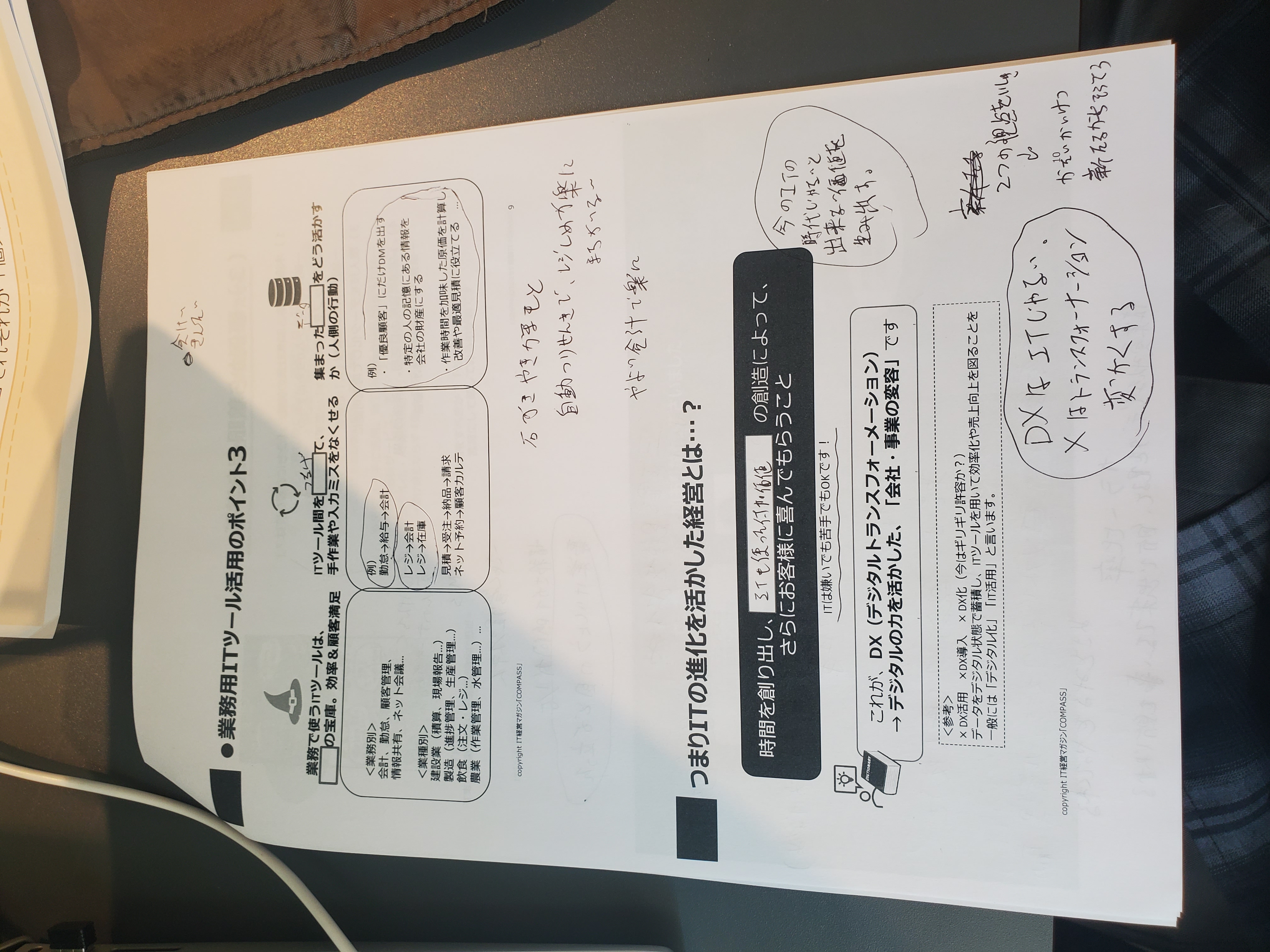
▲ Actual Photo (Excerpt): Seminar materials with handwritten notes
My handwriting is quite messy (lol), but Genspark's image recognition is quite excellent, so it manages to read it. Attach this image and give a prompt (instruction) like the following:
"Please create summary PPT materials from the content of the attached photos. Please list my handwritten notes separately from the original document content so they are distinguishable."
While AIs like Gemini tend to over-summarize images and omit information, Genspark transcribes quite faithfully, so detailed instructions are unnecessary.
5. Actual Genspark PPT Output Results and Tips for the "20% Manual Work"
As a result of feeding the above photo and instructions, Genspark clearly distinguished between the printed text and handwritten text within the image and exported a PowerPoint (PPTX) with the following structure:
Purpose of Introduction
IT tools used in business aim for "retention, efficiency & customer satisfaction." The key is whether they can be continuously used on-site, not just mere introduction.
Data Utilization
How to utilize collected data (human actions).
📌 Handwritten Notes (Parts extracted by AI from the image)
・Automatic change dispenser makes register closing easy and error-free
・Creating value that is only possible in today's IT era.
・DX is not IT. X = Transformation (to transform/to transform)
From those scribbled notes, it accurately separated just my handwritten thoughts.
You can download the actual output PPTX file here.
When you download and open the PPTX generated by AI, the following "layout issues" are always present:
- Text or shapes extend beyond the slide: AI may place objects ignoring the design frame. (Even in page 1 of the attached sample PPTX, I intentionally left it uncorrected, and the circular shape in the upper right extends off-screen.)
- Unnatural font sizes or line breaks: Due to automatic generation, readability can be poor.
Trying to fix these on Genspark will lead you down a rabbit hole. Simply open the file in PowerPoint and **"quickly move overlapping shapes inwards with the mouse," "select all text and standardize it to your company's standard font and adjust the size," and "correct minor AI misreadings"** – these few minutes of work will complete a practical, perfect document.
6. Summary: Post-use of Training and Seminars Will Dramatically Change
By using Genspark to digitize paper documents into data (PPT) in this way, you'll be overwhelmingly more inclined to "look back at them later" or "share them internally" than if you just kept a stack of papers filed away.
Especially for new employees in companies who learn a lot from training, creating their own summary PPTs using this method after attending sessions could help them apply the training content to their future work.
If you want to "reduce time spent on document creation" or "organize input information neatly and create PPTX," please make full use of Genspark's PPT creation function!

![Genspark's AI Video Generation: A Comprehensive Review – How It Differs from Sora 2 and Veo 3 Integration [2026 Edition]](/images/articles/83-ai_video_generation-en.png)